How to expand existing Pool on VTRAK D5000 Series
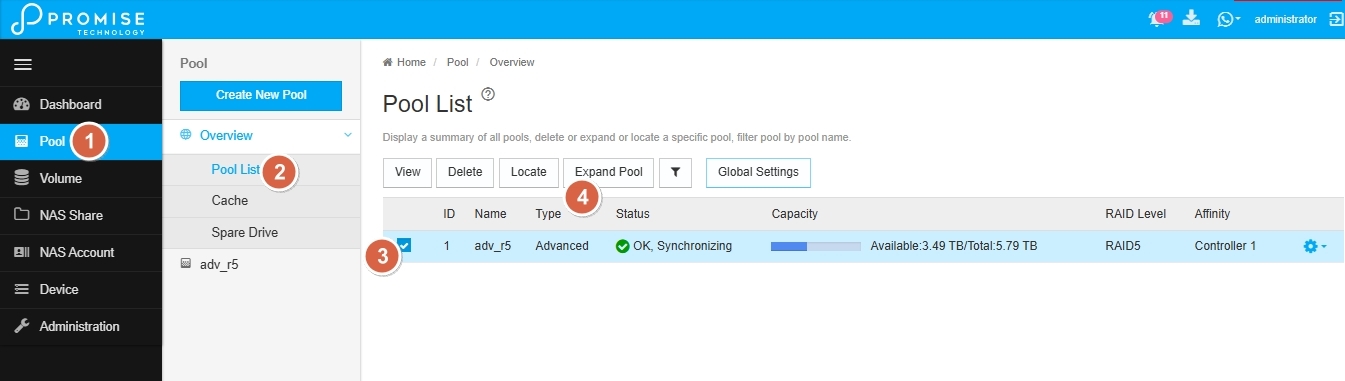
1. Click the Pooltab after user login the WebPAM PROe.
2. Open the Pool List submenu under the Overview menu (expanded by default).
A list of pools will appear.
3.Select the pool you want,
4.Choose Expand Pool button at the top.
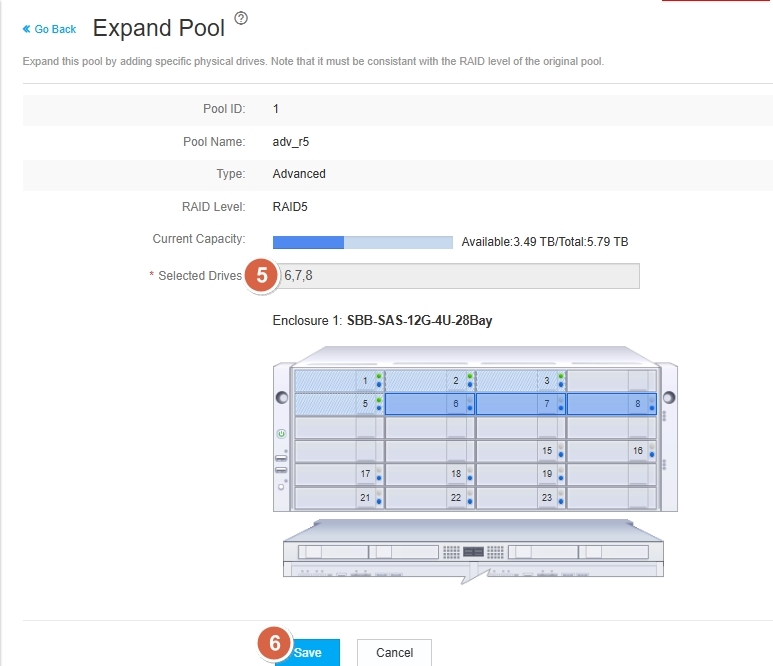
- In the Selected Drives view for HDDs or SSDs, click available drives in the front view to add them to your pool. For External Drives, click the checkbox in the external drive list to add them.
Note: The selected physical drives must support the pool's current RAID level.
Take an example to select at least 3 disks if using a RAID5 level.
6. Once your selections are complete, click Save.
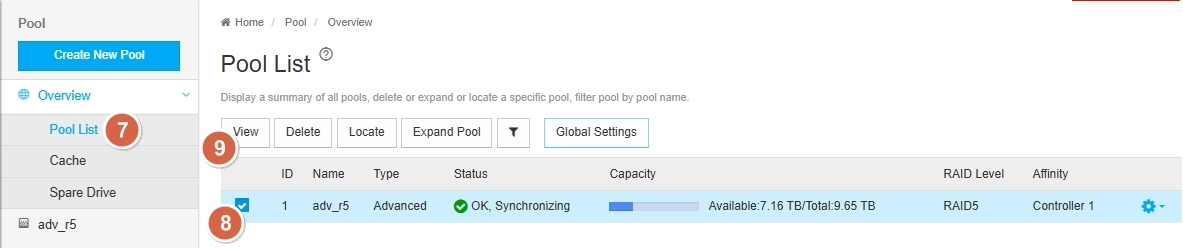
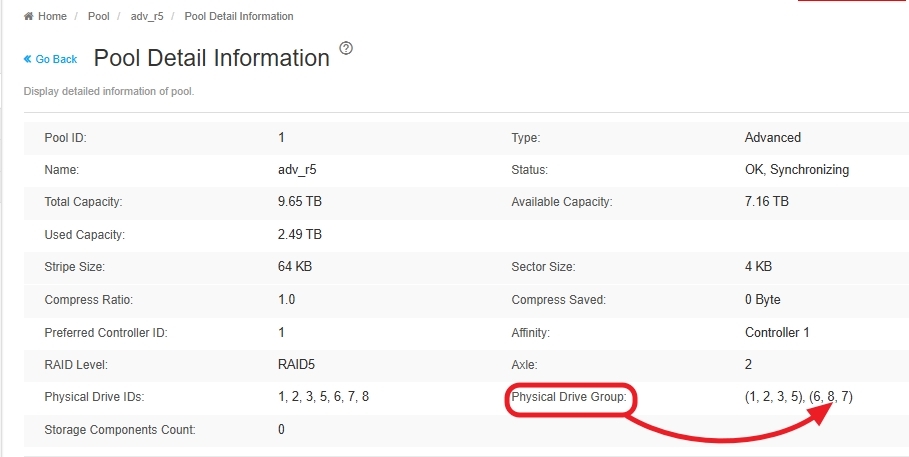
7~9. Check current physical drive group of the pool.
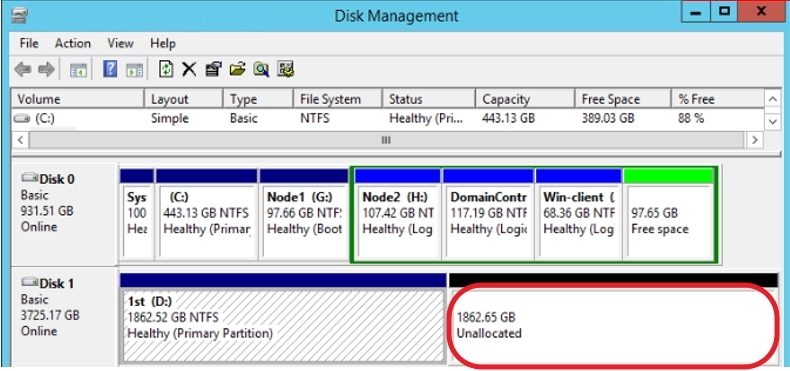
10. A new unallocated space is attached to existing Disk 1 at Windows platform.