
The following is a best practice guide for the use of a Vess R2600 Series for VMware ESXi version 5 or higher.
Topics covered for this article are RAID Levels, Expansion Chassis, LUN Affinity, ALUA, VAAI Support and Thin Provisioning.
RAID: RAID is an acronym for Redundant Array Of Independent Disks.
For VMware usage, we recommend one of the following two RAID configurations to be used:
- RAID 5 (Stripe With Parity): Optimal Read/write speeds with less overhead. Superior Performance.
- RAID 6 (Stripe with Dual Parity): Good for Archival Storage that offers Dual Redundancy and superior fault tolerance.
RAID 0 (Stripe): It is not recommended to run a stripe volume as it will offer little performance benefit and it will not provide any fault tolerance for the volume.
J2600 Expansion Chassis: If you have an expansion chassis attached to your Vess 2600 unit, you can add more storage space to your VM configuration; however, it is not recommended to span enclosures under a single large RAID array volume using the Vess RAID Engine.
For best practice purposes, it is recommended to have each enclosure contain separate disk arrays (RAID configurations which span enclosures, will require either RAID 50 or RAID 60)
LUN Affinity: For optimization, LUN Affinity should be enabled for Dual controller Vess R2600 units. LUN Affinity will enable write performance to be faster, and increase stability. Although VMware has been certified with LUN Affinity disabled, Promise Technology recommends that LUN Affinity be enabled to provide the best performance.
ALUA: ALUA is an acronym for Asynchronous Logical Unit Access (ALUA) must be enabled for VMWare to be optimized. VMware 5x and higher is ALUA aware, and it is recommended to have this feature enabled for better overall performance on the unit.
Thin Provisioning: This VMware feature is to a VM that is available in the LUN to provide higher utilization by letting you dedicate more storage capacity than the actual purchased capacity. With VAAI enabled, the Vess 2600 series can provide hardware support to thin provisioned LUNs by allowing freed up space on the LUN to be reclaimed.
VAAI: VMware API Array Integration (VAAI) is a VMware special configuration API which offloads some storage tasks for the ESXi server. This is also known as hardware acceleration.
The latest Vess firmware versions offer VAAI support which can be either enabled or disabled as only VMware makes use of VAAI.
Note that if VAAI was in use prior to upgrading to VMware, it is important that VAAI be re-enabled after updating to continue to access the volume. If VAAI is not enabled after the upgrade of the VMware host, the LUN(s) will be seen but the datastore will not be accessible. This is due to the datastore being originally created with VAAI enabled.
With VAAI enabled, the datastore will have support use for AB file locking. Therefore, the datastore will only be seen if VAAI is enabled.
To enable the VAAI feature on the Vess 2600 series, you may use the WEBPAM PROe GUI or the Command Line Interface (CLI).
[Enabling VAAI via WEBPAM PROe]
To enable VAAI via WEBPAM PROe:
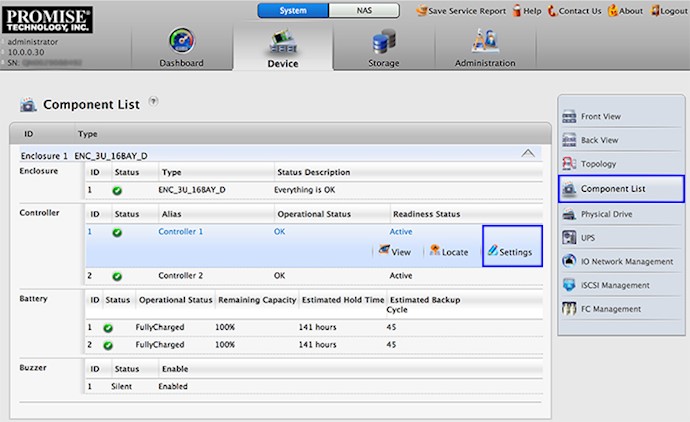
- Go to Component List, select (click) on one of the controllers, and click Settings:
- In the Setting menu, locate Enable VAAI Support and ✓ the checkbox. Then click Save.
Note 1 - Once you apply the VAAI module to one controller, the setting will automatically be applied to the second controller.
Note 2 - Make sure to reboot the subsystem after enabling VAAI.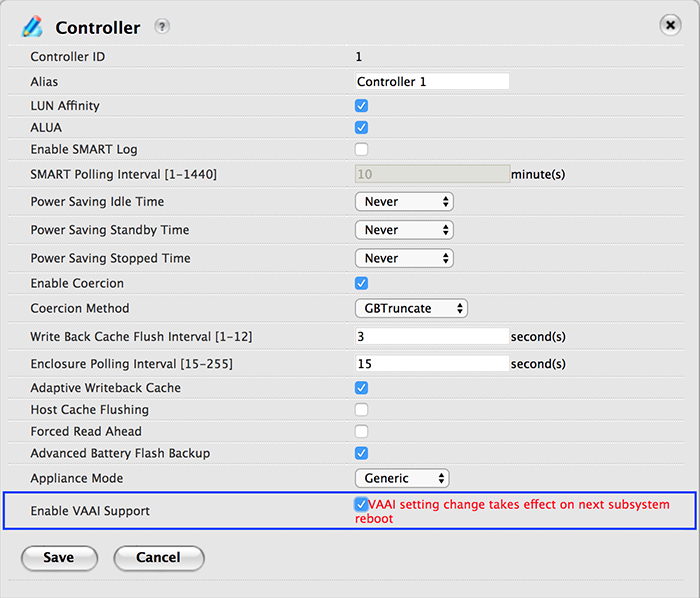
[Enabling VAAI via CLI]
To access the CLI, you can use the serial console or via terminal thru SSH:
ssh administrator@Virtual_IP_Address
To enable VAAI in the CLI, type the following commands:
administrator@cli> ctrl -a mod -s "VAAIsupport=enable"
Note: The CLI does not prompt the end-user to reboot the Vess; however, the Vess 2600 needs to be rebooted.
After enabling the VAAI module, you will need to reboot the Vess and the ESXi server.
After you reboot the Vess 2600, run the following command to ensure that VAAI is enabled on both controllers:
administrator@cli> ctrl -v

-------------------------------------------------------------------------------
CtrlId: 1
Alias: Controller 1
OperationalStatus: OK                  PowerOnTime: 35 minutes
ControllerRole: Primary                ReadinessStatus: Active
LUNAffinity: Enabled                   LunmappingMethod: Name Based
CacheUsagePercentage: 0%               DirtyCachePercentage: 0%

PartNo: F29V2FD00000000                SerialNo: XXXXXXXXXXXXXXX
HWRev: A3.1                            WWN: XXXX-XXXX-XXXX-XXXX
CmdProtocol: SCSI-3
MemType: DDR3 SDRAM (Slot 1)           MemSize: 2 GB (Slot 1)
       : N/A (Slot 2)                  : N/A (Slot 2)
FlashType: Flash Memory                FlashSize: 512 MB
NVRAMType: SRAM                        NVRAMSize: 256 KB
BootLoaderVersion: 1.00.0000.18        BootLoaderBuildDate: Apr 28, 2016
FirmwareVersion: 1.05.0000.84          FirmwareBuildDate: Nov 27, 2017
SoftwareVersion: 1.05.0000.84          SoftwareBuildDate: Nov 27, 2017

DiskArrayPresent: 2                    OverallRAIDStatus: OK
LogDrvPresent: 2                       LogDrvOnline: 2
LogDrvOffline: 0                       LogDrvCritical: 0
PhyDrvPresent: 16                      PhyDrvOnline: 16
PhyDrvOffline: 0                       PhyDrvPFA: 0
GlobalSparePresent: 0                  DedicatedSparePresent: 0
RevertibleGlobalSparePresent: 0        RevertibleDedicatedSparePresent: 0
RevertibleGlobalSpareUsed: 0           RevertibleDedicatedSpareUsed: 0

WriteThroughMode: No                   MaxSectorSize: 4 KB
PreferredCacheLineSize: 64 KB          CacheLineSize: 64 KB
Coercion: Enabled                      CoercionMethod: GBTruncate
SMART: Disabled                        SMARTPollingInterval: 10 minutes
MigrationStorage: DDF                  CacheFlushInterval: 3 second(s)
PollInterval: 15 second(s)             AdaptiveWBCache: Enabled
HostCacheFlushing: Disabled            ForcedReadAhead: Enabled
ALUA: Enabled                          PowerSavingIdleTime: Never
PowerSavingStandbyTime: Never          PowerSavingStoppedTime: Never
RestoreACMode: Last state
AdvancedBatteryFlashBackup: Enabled
BackupFlashStatus: Backup flash ready
BackupFlashSize: 7.54 GB
PerfectRebuildAvailable: 16
ApplianceMode: Generic
VAAIsupport: Enable

-------------------------------------------------------------------------------
CtrlId: 2
Alias: Controller 2
OperationalStatus: OK                  PowerOnTime: 35 minutes
ControllerRole: Secondary              ReadinessStatus: Active
LUNAffinity: Enabled                   LunmappingMethod: Name Based
CacheUsagePercentage: 0%               DirtyCachePercentage: 0%

PartNo: F29V2FD00000000                SerialNo: XXXXXXXXXXXXXXX
HWRev: A3.1                            WWN: XXXX-XXXX-XXXX-XXXX
CmdProtocol: SCSI-3
MemType: DDR3 SDRAM (Slot 1)           MemSize: 2 GB (Slot 1)
       : N/A (Slot 2)                  : N/A (Slot 2)
FlashType: Flash Memory                FlashSize: 512 MB
NVRAMType: SRAM                        NVRAMSize: 256 KB
BootLoaderVersion: 1.00.0000.18        BootLoaderBuildDate: Apr 28, 2016
FirmwareVersion: 1.05.0000.84          FirmwareBuildDate: Nov 27, 2017
SoftwareVersion: 1.05.0000.84          SoftwareBuildDate: Nov 27, 2017

DiskArrayPresent: 2                    OverallRAIDStatus: OK
LogDrvPresent: 2                       LogDrvOnline: 2
LogDrvOffline: 0                       LogDrvCritical: 0
PhyDrvPresent: 16                      PhyDrvOnline: 16
PhyDrvOffline: 0                       PhyDrvPFA: 0
GlobalSparePresent: 0                  DedicatedSparePresent: 0
RevertibleGlobalSparePresent: 0        RevertibleDedicatedSparePresent: 0
RevertibleGlobalSpareUsed: 0           RevertibleDedicatedSpareUsed: 0

WriteThroughMode: No                   MaxSectorSize: 4 KB
PreferredCacheLineSize: 64 KB          CacheLineSize: 64 KB
Coercion: Enabled                      CoercionMethod: GBTruncate
SMART: Disabled                        SMARTPollingInterval: 10 minutes
MigrationStorage: DDF                  CacheFlushInterval: 3 second(s)
PollInterval: 15 second(s)             AdaptiveWBCache: Enabled
HostCacheFlushing: Disabled            ForcedReadAhead: Enabled
ALUA: Enabled                          PowerSavingIdleTime: Never
PowerSavingStandbyTime: Never          PowerSavingStoppedTime: Never
RestoreACMode: Last state
AdvancedBatteryFlashBackup: Enabled
BackupFlashStatus: Backup flash ready
BackupFlashSize: 7.54 GB
PerfectRebuildAvailable: 16
ApplianceMode: Generic
VAAIsupport: Enable
Contact Promise Technology Support
Need more help? Save time by starting your support request online and a technical support agent will be assigned to your case.
Promise Technology Technical Support >
