Searching: power management - 3 Results Found

Pegasus32 Pegasus32 Fan and Power Management Guide
Babatunde Akinkuolie posted this 29 October 2024 - Last edited 02 January 2025

The Pegasus32 is designed to supply 85 Watts of charging power to connected devices, even when the host system is shut down or in sleep mode.

Because of this design:

  • The power supply fan remains on to provide adequate cooling while delivering power.
  • The main fan and hard drives are turned off to minimize noise during these states.

Eliminating Power Supply Fan Noise

Method 1: Shut Down Pegasus32 via the Power Button

  1. Eject the Volume:
    • Before shutting down, eject the Pegasus32 volume properly from your system.
  2. Hold Power Button:
    • Press and hold the power button for about 6 seconds (located on the front panel).
  3. Shutdown Complete:
    • The Pegasus32 will power off completely and the fan noise will stop.
  4. Power On Again:
    • To turn it back on, hold the power button for 6 seconds.

Method 2: Disconnect the Thunderbolt Cable

  1. Eject the Volume:
    • Eject the Pegasus32 volume before unplugging any cables.
  2. Unplug Thunderbolt Cable:
    • Disconnect the Thunderbolt cable either from the Pegasus32 or your computer.
  3. Fan Noise Stops:
    • The Pegasus32 will stop supplying power, and the fan noise will stop.
  4. Reconnect Thunderbolt Cable:
    • Reconnect the Thunderbolt cable when ready to use again.

Important Notes:

  • Always eject the volume before disconnecting the Thunderbolt cable to prevent data loss.
  • When using the power button shutdown, the Pegasus32 must be manually powered back on with the button—it won't automatically turn on when the system restarts.
  • The power supply fan only operates in charging mode to prevent overheating, ensuring safe power delivery to your devices.
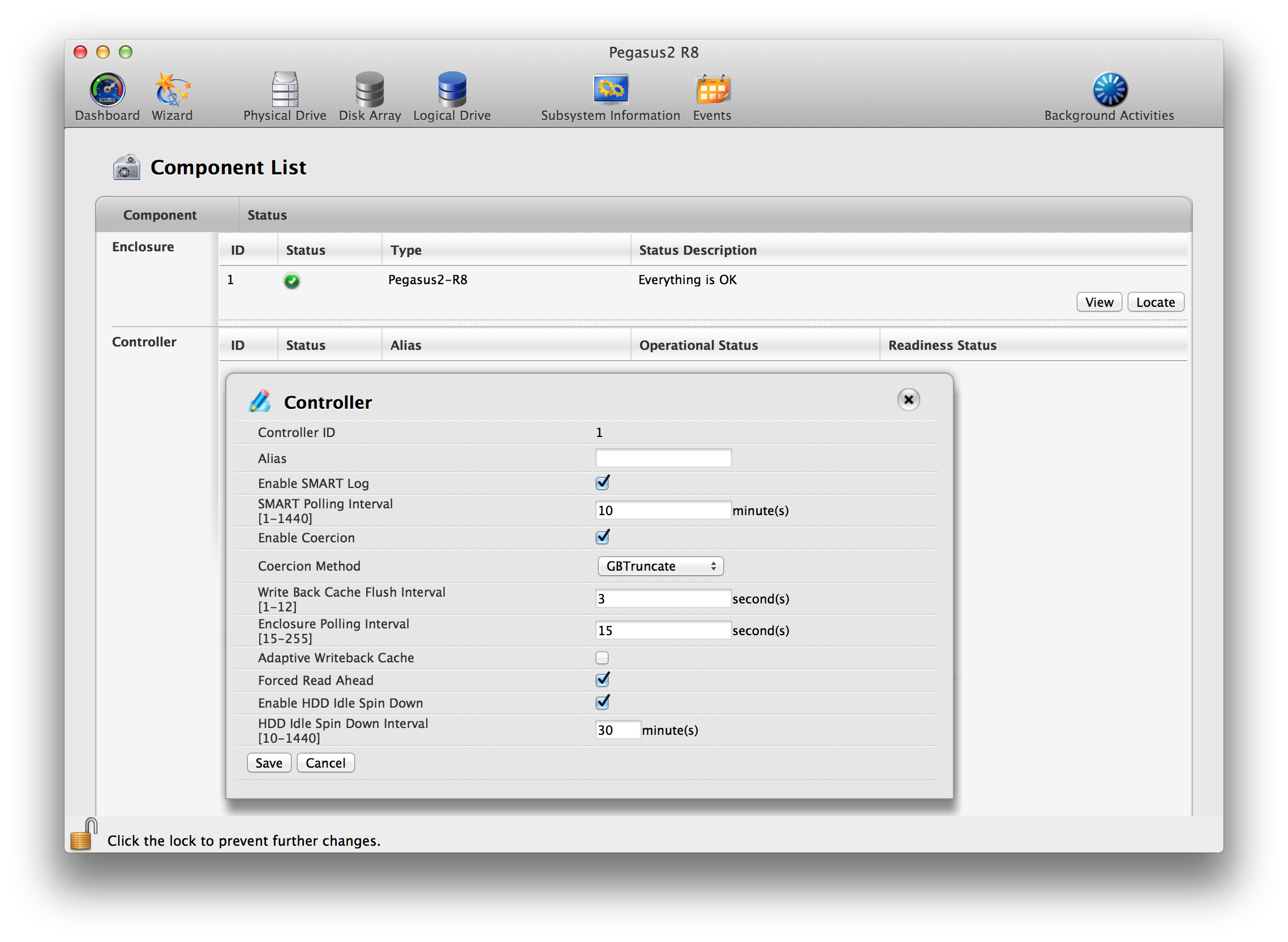
 

Pegasus2 How do I turn off all hard disk drive power management features of Pegasus2?
Ken Chou posted this 22 January 2014

  1. Open Terminal, located in the Utilities folder (choose Go > Utilities in the Finder).
  2. In the Terminal window, type promiseutil. This will open a cliib> prompt.
  3. At the cliib> prompt, type ctrl -a mod -s "powersavinglevel=0"
  4. To verify the change, at the cliib> prompt type ctrl -v. You should see PowerSavingLevel: 0
To prevent the Mac from putting the Pegasus2 to sleep:
  1. Open System Preferences -> Energy Saver
  2. Uncheck the box beside "Put hard disks to sleep when possible"
NOTE If the above option is enabled, the hard drives in the Pegasus2 will spin down even if the PowerSavingLevel=0.  The Mac will control all disk spin down.

Pegasus2 Firmware v5.04.0000.17 and above offers the following default hard disk drive power management settings:
  • IdleTimeToParkHead:  1 minute.
  • IdleTimeToLowRotation:  5 minutes.
  • IdelTimeToSpinDown:  30 minutes,
  • PowerSavingLevel:  3.

PowerSavingLevel Options:
  • Level 0   Disabled.
  • Level 1   Park R/W heads.
  • Level 2   Park R/W heads. Lower rotation speed
  • Level 3   Park R/W heads. Lower rotation Speed. Spin-down HDD.

As highlighted above there are three levels of power management offered by Pegasus2.
Note: 0 simply disables all.

Lets say the user unchecks "Enable Idle HDD Spin Down" from the GUI, only the spin-down function will be disabled (level 3)


Other HDD power management features are still enabled.

To disable all HDD power management features, please follow the steps shown above. Once you invoke via Promise CLI the command "ctrl -a mod -s "powersavinglevel=0" this will disable all power management of the hard disk drives in Pegasus2. 

For the next service release we plan to disable level 1 and level 2 by default. This way the user only needs to change the setting via the Promise Utility GUI and simply uncheck "Enable Idle HDD Spin Down"

Important Information!

Please do not confuse "Power Saving Level" and "Power Management" features in Pegasus2

"Power Saving Level" (default is 3) is to control the hard disk drive rotation speed, spin down and head park.

"Power Management" (default is enable) is for Pegasus2 to support ACPI detection, wake-from-sleep and hot plugging of the Thunderbolt device.

Do not disable Power Management. Doing so will make the Pegasus2 hang when the Mac is in sleep or shut down and restarted and will require the Pegasus and the Mac to be power cycled to return to normal operation.

To view Pegasus2 Power Management state:
  • At the cliib> prompt, type: ctrl -v
  • You will see in the controller settings "PowerManagement: Enable"
  • If "PowerManagent: Disable", please follow the steps below to enable Power Management.
To enable Pegasus2 Power Management functions:
  • At the cliib> prompt, type: ctrl -a mod -s "powermanagement=enable"


Close